Google Search Console
- Why connect Search Console
- Add and verify your site with Google
- Connect Search Console in Galytics
- Viewing your search terms
- Things to know
Why connect Search Console
Google stopped including search terms in the referrer since 2012, so organic Google traffic shows up in your dashboard only as a single google.com source. Connecting Google Search Console lets Galytics pull the actual search queries that brought visitors to your site, and show them right alongside your other traffic sources.
Add and verify your site with Google
Before connecting, your site must already be a verified property in Google Search Console.
- Go to Google Search Console and add your site as either a domain property or a URL prefix property.
- Verify ownership using one of Google's methods (DNS record, HTML file upload, etc.).
Connect Search Console in Galytics
- Open your website settings and go to the Integrations tab.
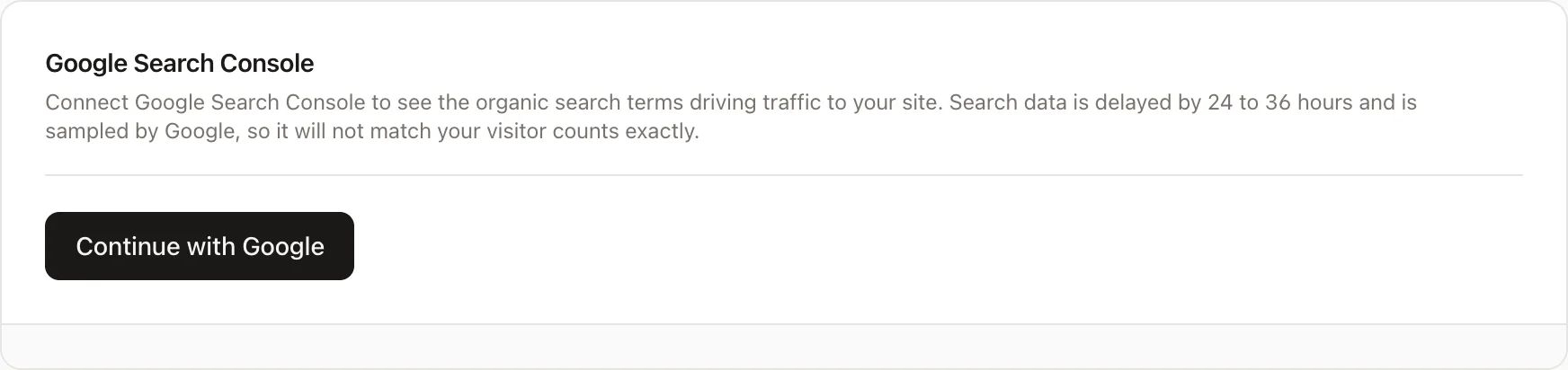
- In the Google Search Console section, click Continue with Google.
- Choose the Google account that owns the verified property and grant the read-only Search Console permission.
- Back in Galytics, pick the property you want to use from the dropdown and click Save.
Once saved, Galytics queues an initial import of your historical search data and keeps it up to date with a daily sync.
Viewing your search terms
After the first sync completes, a Search terms tab appears in the Top Sources chart on your dashboard, listing the organic Google queries with their impressions and click-through rate in the selected period.
Things to know
- Search Console data is delayed by roughly 24 to 36 hours, so the most recent day or two may be incomplete.
- Queries are ranked by impressions, and the percentage column is the click-through rate (clicks divided by impressions). Queries that got impressions but no clicks appear with a 0% rate.
- Google samples query data, so the totals will not match your visitor counts exactly.
- To stop syncing, click Disconnect in the Google Search Console section.