

Funnels
About funnels
A funnel shows how many visits go through a series of steps, for example from your landing page to pricing to signing up, and where the rest drop off.
Funnels are calculated from the pageviews and custom events you have already collected. A funnel you create today also shows the past, as far back as your data goes.
Creating funnels
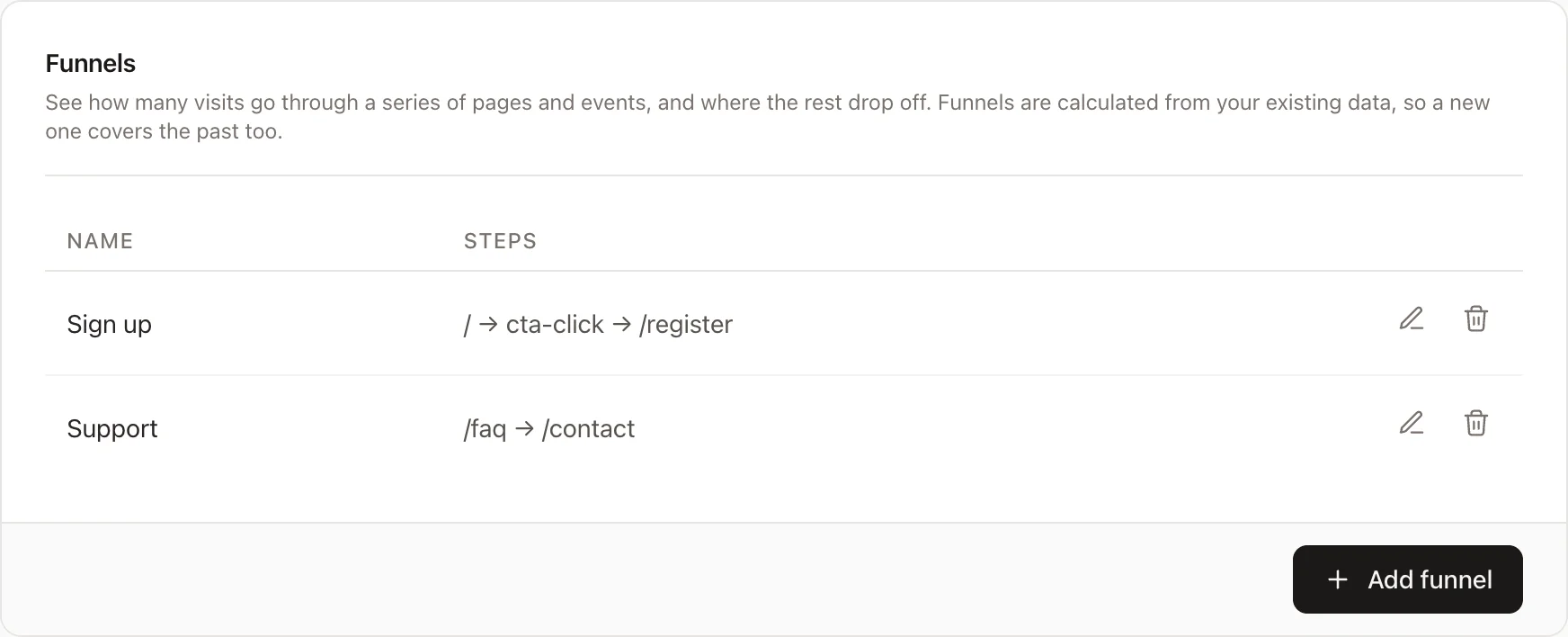
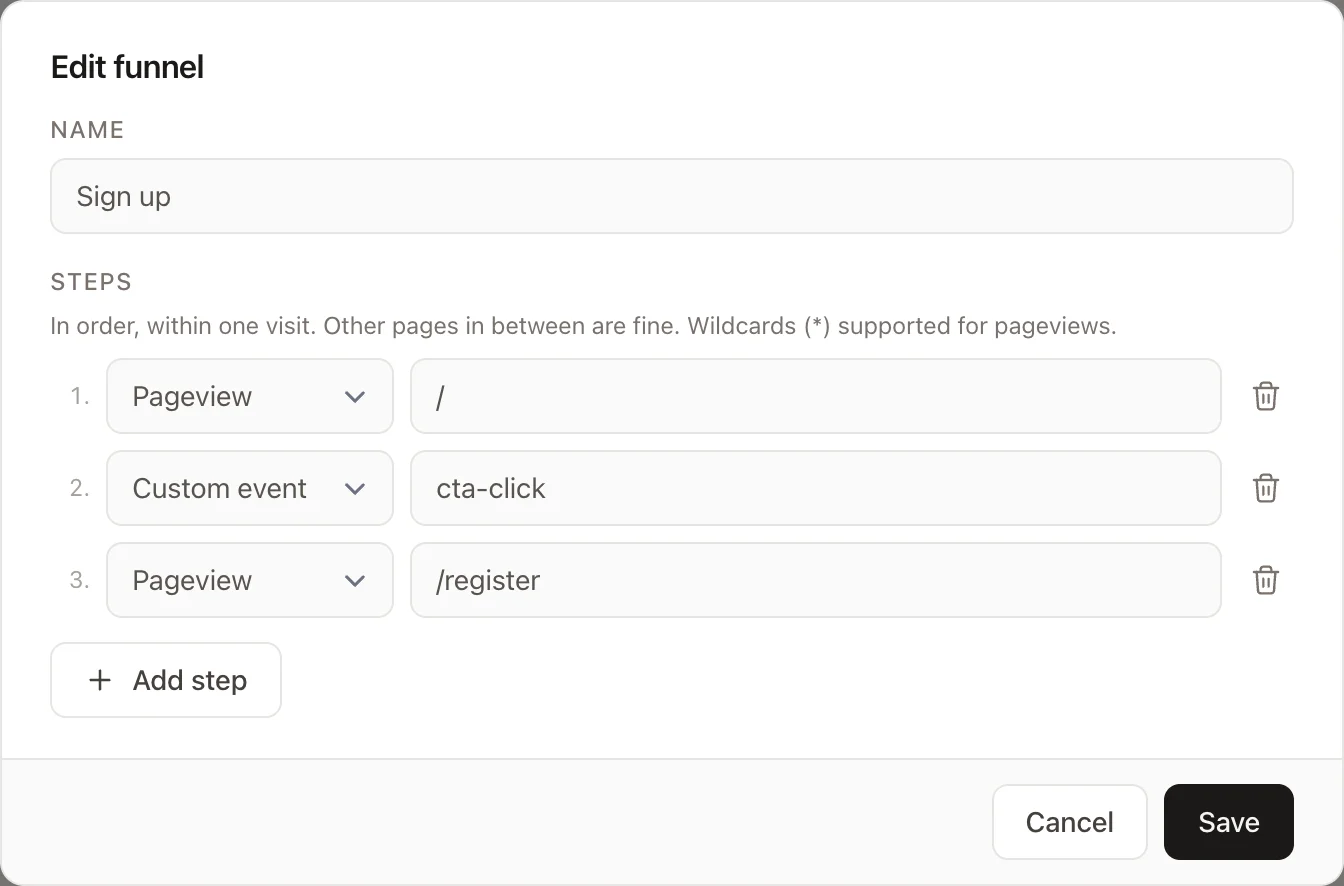
To create a funnel, click the "Add funnel" button. This opens a modal where you configure it.
- Choose a name
- Add between 2 and 10 steps. Each step is either:
- Pageview: a visit viewed a URL matching the page pattern. Wildcards are supported (e.g.
/blog/*). - Custom event: a visit fired a custom event with exactly this name.
- Pageview: a visit viewed a URL matching the page pattern. Wildcards are supported (e.g.
A visit counts for a step when it has completed every step before it, in order and within the same visit. Other pages in between are fine, so a visit going from / to /blog to /pricing still passes a funnel from / to /pricing.
Reading funnels
Funnels are shown at the bottom of the dashboard. If you have more than one, pick it in the dropdown on the card. For each step you see:
- Visits: how many visits reached the step, and what share that is of the visits that started the funnel. The bar shows the same share, against a track as wide as the first step.
- Between steps: how many percent of the visits continued to the next step, and how many dropped off.
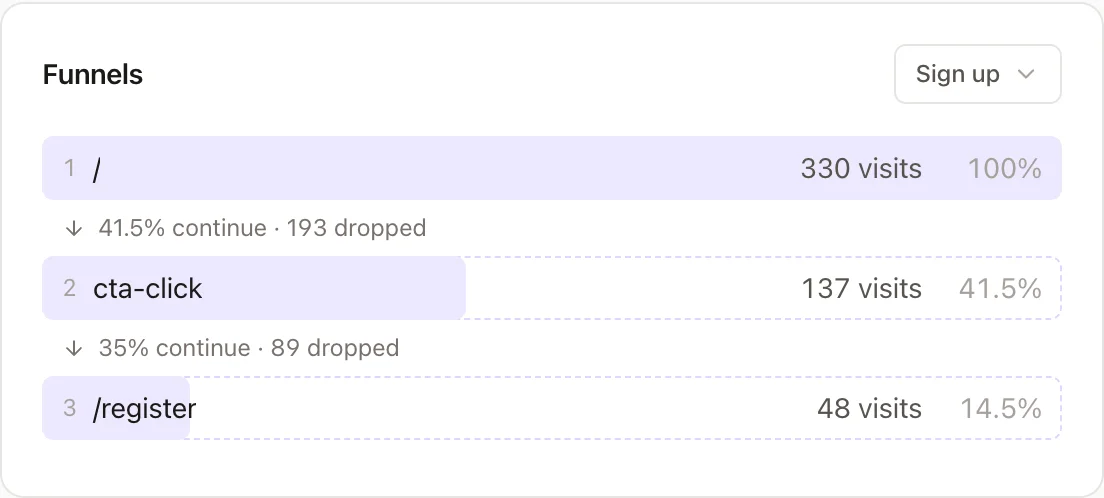
Funnels follow the dashboard's date range and filters. A visit counts when it started in the selected period, even if it finished the funnel shortly after it ended.
Modifying and deleting funnels
Click on the "pencil" button to edit a funnel, or the "trashcan" icon to delete it. Since funnels are calculated from your collected data, changing or deleting one never removes any data.